
Running out of storage slows everyday tasks, blocks app updates, and makes it harder to take photos or videos when you need to. The fastest way to free up space on a smartphone is to remove unused apps, clear cached data, delete unnecessary media, and use built-in cleanup tools. These steps can recover a surprising amount of storage without affecting essential files. If your phone still feels full after basic cleanup, checking hidden system data and download folders often reveals large files that have been quietly taking up space for weeks or months.
Remove Unused Apps and Large App Data
Uninstall Inactive Apps
Unused apps often occupy far more space than expected because they include downloaded assets, offline files, and saved preferences. Open your storage or app management settings, sort apps by size, and remove anything you have not used recently. Focus first on games, shopping apps, travel tools, and duplicate utilities. If you may need an app later, note your login details before uninstalling it. Removing even a few large apps can quickly free enough space for updates, photos, videos, and smoother daily performance.
Clear App Cache and Background Data
Apps store temporary files to load content faster, but over time that cache grows unnecessarily large. Clearing cache in browsers, social apps, streaming services, and maps can recover space immediately without deleting your main account data. Also review offline downloads and background-synced files inside each app’s settings. Music, video, and document apps often keep local copies you no longer need. Make this a regular habit if storage fills up often. It is one of the safest ways to free up smartphone storage fast.
Clean Photos, Videos, and Downloads
Delete or Back Up Large Media Files
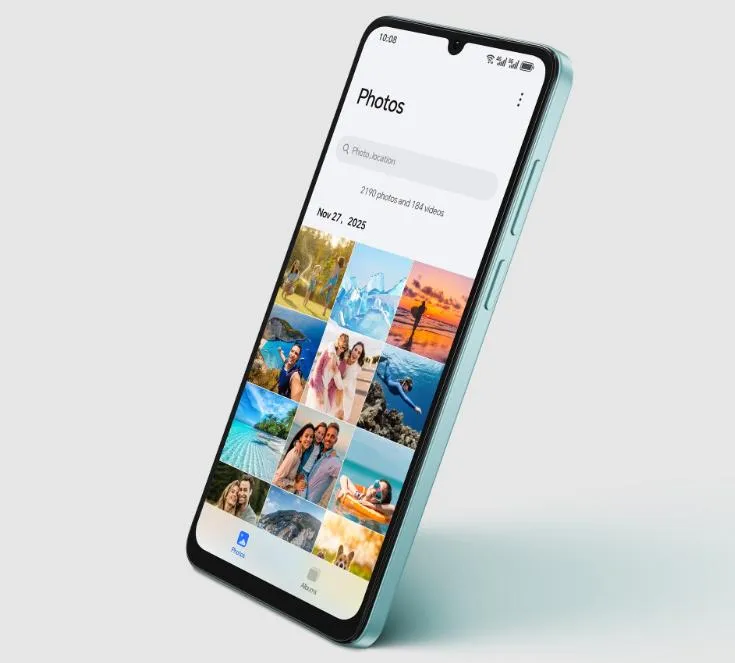
Photos and videos usually consume the most storage, especially if you record in high resolution. Sort your gallery by file size or date and remove duplicates, blurry shots, screenshots, and old recordings. Back up important media to cloud storage, a computer, or a memory card before deleting anything valuable. On devices like the HONOR X6d 5G, 256GB of PC-grade storage can hold up to 56,800 or more photos, and it supports up to 1TB MicroSD card expansion for extra space when your library keeps growing.
Clear Downloads and Messaging Media
The downloads folder often fills with forgotten PDFs, installation files, images, and shared documents. Review it carefully and delete anything outdated or duplicated. Messaging apps also store large amounts of photos, videos, voice notes, stickers, and forwarded files that remain saved long after conversations lose relevance. Open each app’s storage settings and remove bulky media from old chats or groups. If needed, save only essential files first. This quick cleanup can free several gigabytes without affecting your phone’s core functions or contacts.
Manage System Files and Hidden Storage
Clear System Cache and Temporary Files
Temporary system files help apps and processes run efficiently, but they are not meant to stay forever. Use your phone’s storage settings to identify cached system data, temporary files, and leftover installation packages. Clearing these items can recover space safely without removing personal content. Restarting the phone after cleanup may also help the system recalculate storage more accurately. If a specific app keeps rebuilding oversized temporary data, update it or reinstall it. This prevents hidden files from consuming storage again too quickly.
Remove Old Updates and Residual Data
Some apps leave residual folders behind after updates or even after removal. These leftovers may include logs, crash reports, thumbnails, and outdated installation files. Check file management folders for unused packages, duplicate backups, and app remnants that no longer serve a purpose. If your phone offers a safe cleanup suggestion for residual data, review it and remove unnecessary items. Also delete update files that have already been installed. This step helps reclaim hidden storage that standard photo or app cleanup often misses completely.
Use Built-In Storage Optimization Tools
Run Storage Cleanup Features
Most smartphones include built-in cleanup tools that scan for junk files, duplicate media, oversized apps, and unnecessary downloads. Open the storage section in settings and run the recommended cleanup feature to identify safe items for deletion. Review the suggestions before confirming, especially if the tool flags screenshots, cached maps, or rarely opened files. These features are useful because they gather storage problems in one place instead of forcing you to search manually through folders and app menus one by one on your own.
Enable Automatic Storage Management
Automatic storage management helps prevent future clutter by removing temporary files, clearing old backups, and suggesting unused items before space becomes critical. Turn on any available smart cleanup, auto-delete, or storage monitoring option in your settings. Some phones can automatically remove backed-up media from local storage after a set period, which is especially useful for heavy photo and video users. Once enabled, these tools reduce manual maintenance and keep free space available for apps, updates, downloads, and new files every day.
Conclusion
The best ways to free up space on a smartphone fast are simple and practical: uninstall apps you do not use, clear cache, remove old downloads, manage media carefully, and run built-in cleanup tools. These actions target the biggest storage drains first, so you can recover space quickly without disrupting daily use. For longer-term results, turn on automatic storage management and review large files regularly. A few minutes of maintenance each month keeps your phone responsive, prevents low-storage warnings, and leaves room for the content that matters.
Refresh Date: July 7, 2026